Introduction
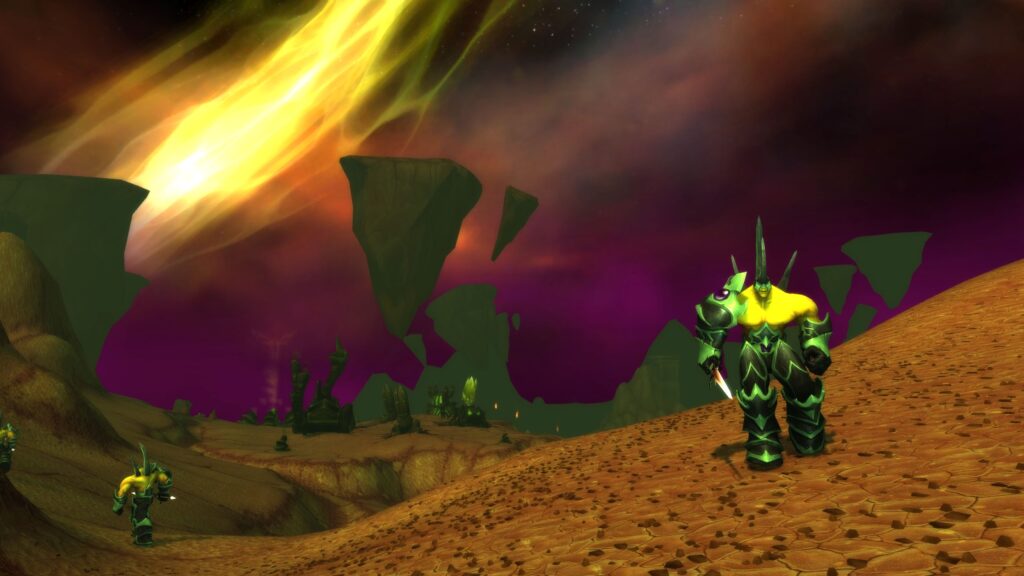
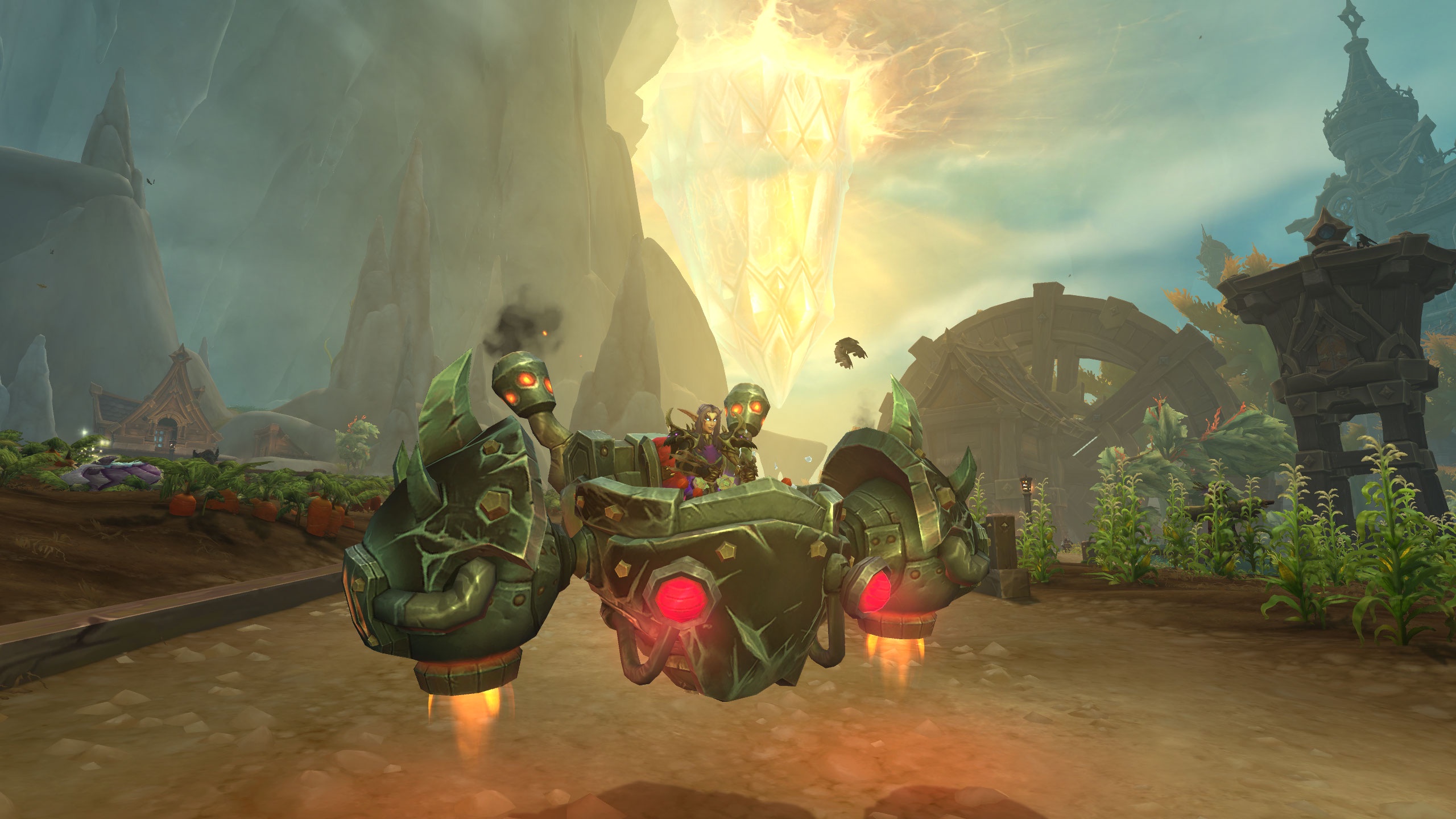
Azeroth’s sweeping vistas and intricate details deserve to be immortalized. Whether you’re documenting raid victories, landscape panoramas, or character portraits, mastering in‑game photography enhances your appreciation of WoW’s art. This guide covers composition, technical settings, useful addons, and post‑processing tips to elevate your screenshots from casual snaps to stunning works of art.
Composition Fundamentals
- Rule of Thirds: Enable grid overlay to position key elements along intersecting lines for balanced framing.
- Leading Lines: Use paths, architecture, or environmental features to guide the viewer’s eye toward focal points.
- Depth and Layering: Frame scenes with foreground interest (e.g., foliage) to add depth and context to distant subjects.
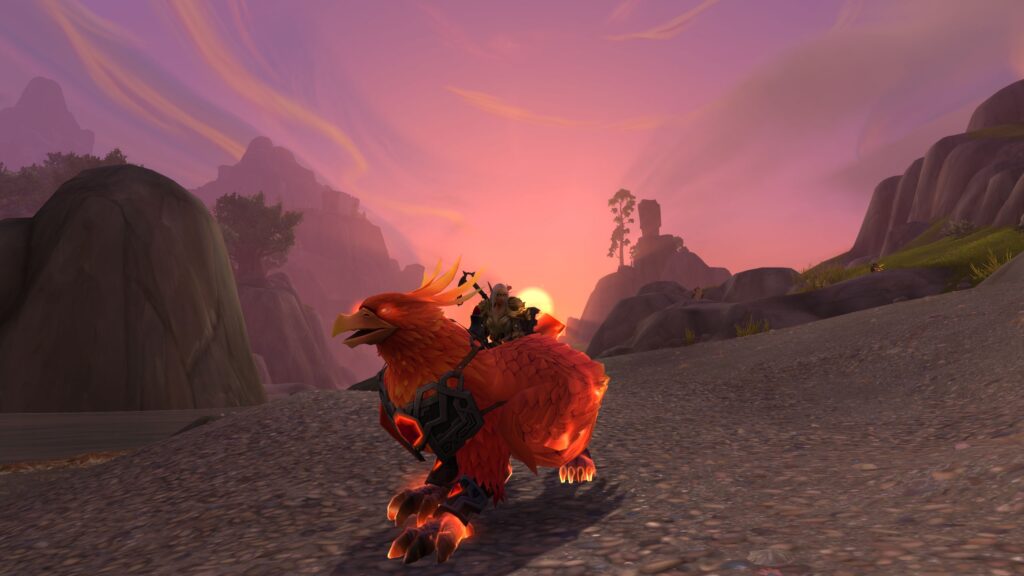
- Lighting and Time of Day: Utilize in‑game time controls or wait for sunrise/sunset for warm, dramatic light angles.
Technical Settings and Addons
- Render Scale & Resolution: In System → Graphics, increase render scale for sharper captures (up to 200%).
- Hidden UI: Bind “UI Parent” and “Toggle UI” to hotkeys to hide default interface before snapping.
- Screenshot Addons: Shay’s Screenshot Tools for automated naming/timestamps; Gladius for capturing PvP action.
- Camera Addons: DynamicCam or VirtualCam to adjust field of view, zoom levels, and camera angles beyond default limits.
Post‑Processing Tips
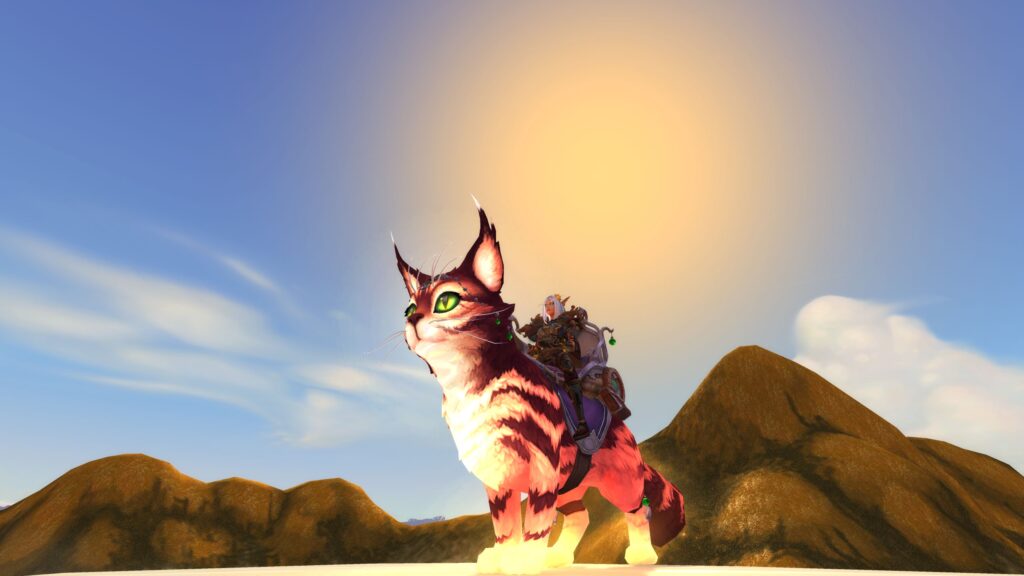
- Color Correction: Use tools like GIMP or Photoshop to tweak saturation, contrast, and white balance for richer tones.
- Sharpening & Noise Reduction: Apply unsharp mask sparingly and use noise filters to smooth pixelation without losing detail.
- Crop and Aspect Ratio: Crop to common ratios (16:9, 4:3) for desktop wallpapers or social media formats.
- Watermarks and Signatures: Add discrete branding if sharing publicly, ensuring it doesn’t distract from the scene.
Conclusion & Snapshot Checklist
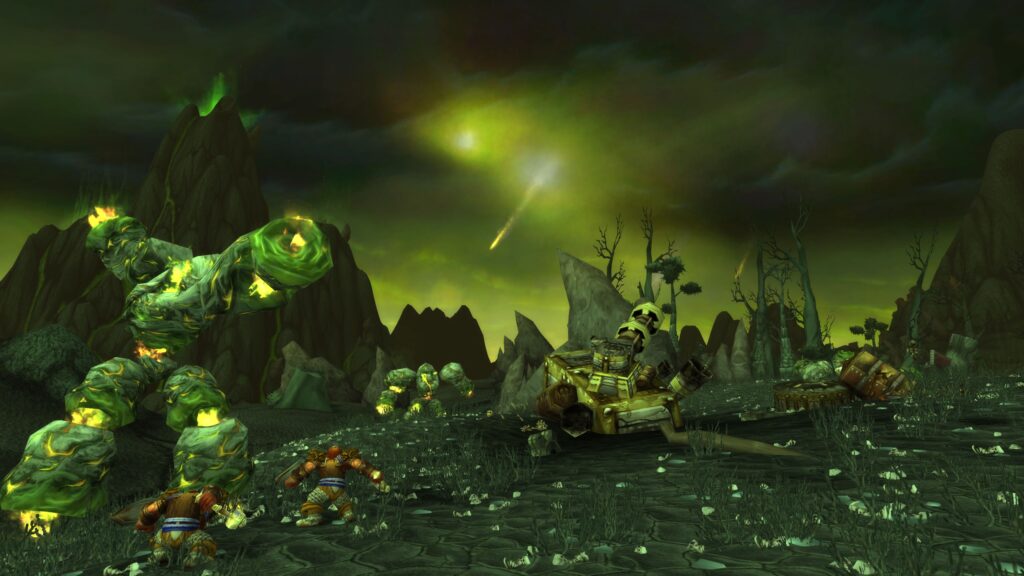
Great screenshots combine artistic vision, technical mastery, and thoughtful editing. Use the checklist below to plan and execute your next Azerothian photo shoot, and share your art with the community to inspire others.
Screenshot Checklist
| Step | Action | Tool/Setting |
|---|---|---|
| 1 | Frame composition | Rule of Thirds grid |
| 2 | Adjust camera | VirtualCam FOV/zoom |
| 3 | Hide UI | Toggle UI hotkey |
| 4 | Capture at high res | Render scale 150–200% |
| 5 | Edit & export | GIMP/Photoshop color & sharpen |